Este artigo ainda não está disponível no seu idioma; mostrando a versão em outro idioma.
Simplify a Complex Song with AI Stem Separation
5 min de leitura

To simplify a busy song, say by making Verse 2 sing Verse 1's words, split the track into vocals and backing with AI, then swap just the vocal and keep the backing. AI does the hard part: cleanly isolating the vocal. The moving, aligning, and exporting take a few steps in a free audio editor.
Here's a real example. Sometimes a song is just too busy: Verse 2 throws a whole new set of lyrics at you, and it's hard to follow. The fix is to paste Verse 1's vocal onto Verse 2's spot, so there's half as much to keep track of. Verse 2's fuller drums and instruments stay right where they were.
One heads-up before you start: reworking someone else's song creates a derivative work. Practice or personal use is fine; to publish it, make sure you own or have licensed the track.
What is "rearranging a song with stems," and why does it work?
Rearranging with stems means using AI to split a song into four separate tracks (vocals, drums, bass, other), then moving one part to rebuild the song the way you want.
The whole thing rests on one rule: change the vocal, leave the backing. A finished song is glued together, so you can't touch any one part. Once separation pulls it apart, the backing stays put and so does the song's shape; you only swap or repeat the vocal. You're rearranging the blocks.
The split of labor: AI separates the song, and a free editor does the cutting and pasting. Isolating a clean vocal from a mix is the hard part that needs AI; moving and pasting is just dragging, and any free tool can do it.
When do you actually need stem separation?
Stem separation isn't always step one. Knowing which case you're in saves effort:
- Repeating or deleting a whole section: no separation needed. Want to copy a full chorus (vocals and backing together) later in the song, or drop a section entirely? Any editor can copy, paste, or delete the whole segment. No separation first.
- Swapping one layer while keeping another: this needs separation. Want Verse 2 to sing Verse 1's words but keep Verse 2's thicker backing? That's separation-only. You need "Verse 1's vocal" over "Verse 2's backing," and those two are mixed into one track, and you can't get them apart without splitting.
Rule of thumb: if you're swapping one layer and keeping another, you need stems.
What can you rebuild with stems?
Once vocals and backing are apart, these "swap one layer, keep another" moves are all on the table:
- Simplify a complex song (this guide): replace one verse's vocal with another's so both sing the same words. Half as much to follow, easier to sing along, while the backing stays the fuller version.
- Remix / mashup: put one vocal over a different section's (or a different song's) backing to build your own version.
- Just want an instrumental for karaoke? That's the simpler move: mute the vocal, keep the backing; you don't need the swap in this guide.
How to swap one section's vocal: four steps
Step 1: Split the song into vocals and backing with AI
Upload a file or paste a link; in about 1–3 minutes the AI splits the song into vocals, drums, bass, and other. For the full separation walkthrough, see the Stem Separation guide. Here you just need four tracks: vocals, plus drums, bass, and other; the last three together are your backing.
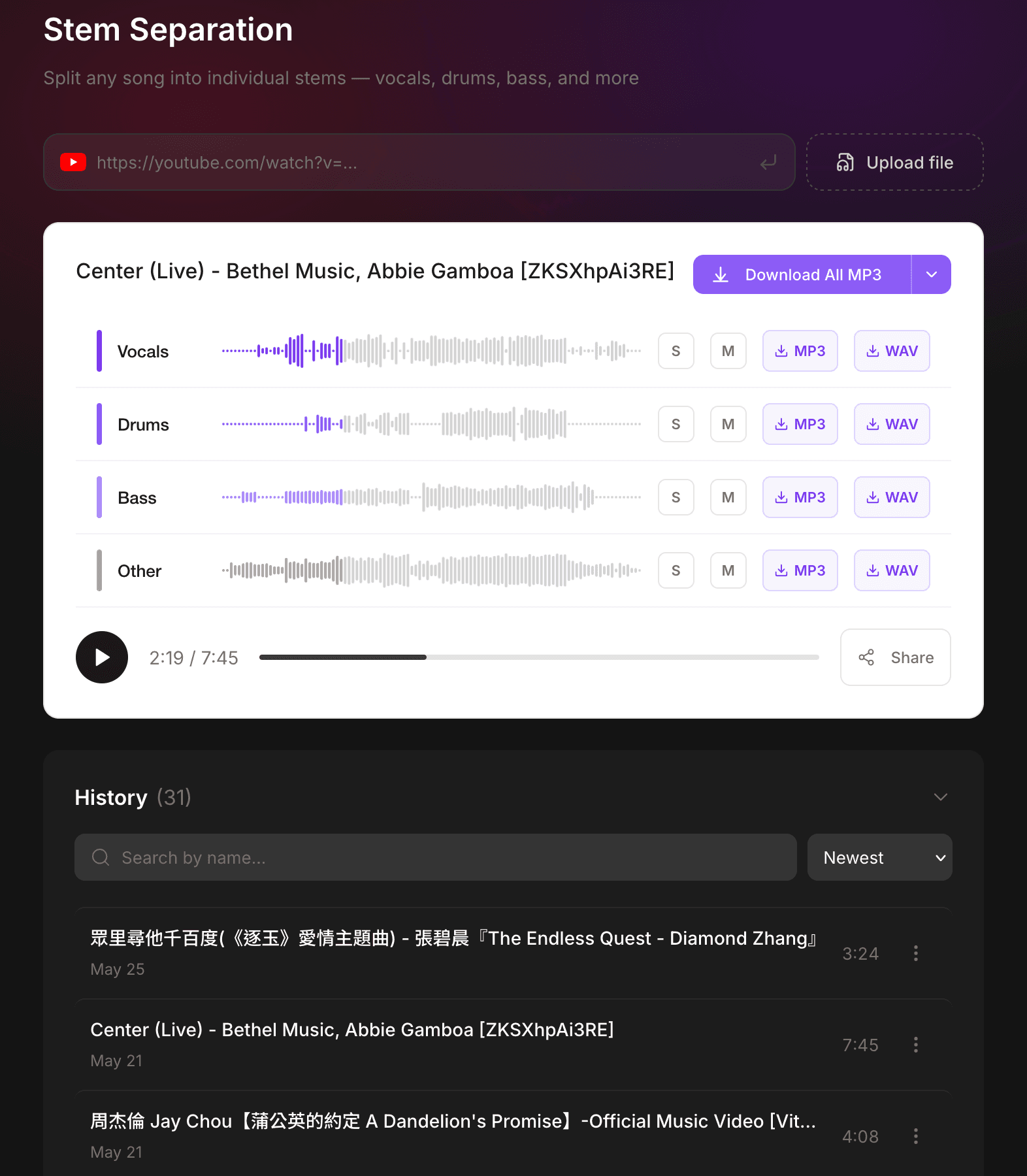
Step 2: Download the tracks and grab the vocal you want
Use "Download All" to grab all four tracks at once, and drop them into a free audio editor (Audacity or GarageBand). On the vocal track, find the part you want (say, Verse 1) and copy it.
Step 3: Paste it onto the target spot
On the vocal track, move to the section you're replacing (say Verse 2) and paste, covering the original vocal. The drums, bass, and other tracks don't move at all, so Verse 2's instrumentation stays intact.
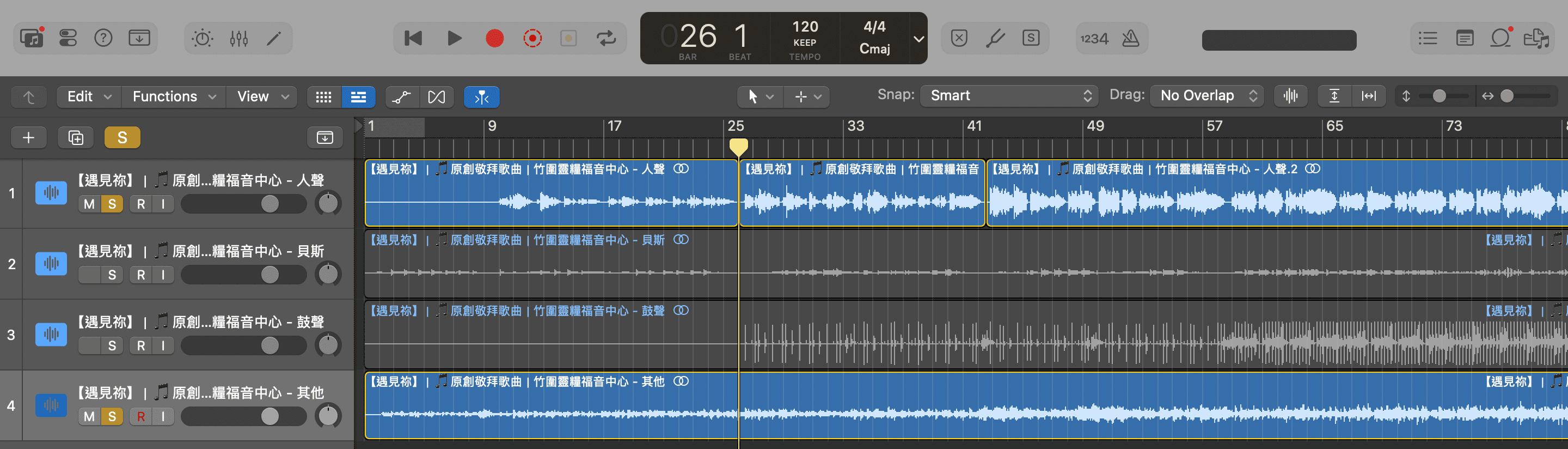
Heads-up: harmonies and backing vocals live in the "vocals" track too (separation groups all voices into one track). So when you replace the vocal, Verse 2's harmonies get swapped for Verse 1's. What actually stays untouched is the drums, bass, and other instruments.
Step 4: Align, preview, export
Nudge the pasted vocal to the beat and listen a few times. Alignment takes a little patience, but it's just manual work; AI already cleared the real hurdle (a clean vocal). Once it sounds right, export the vocal track and the three backing tracks together into one file. Done.
Why does Verse 1's vocal line up with Verse 2?
This is the key to the whole move. In pop songs, the two verses usually share the same melody, the same phrasing, and the same number of bars; only the lyrics differ. So Verse 1's vocal drops onto Verse 2 on time, with little fussing.
But "usually" isn't "always." If Verse 2 was re-arranged, adds ad-libs, runs a different number of bars, or changes key, it won't line up. When that happens, nudge the timing by hand (step 4), or pick a section whose structure truly matches.
What tools do you need? What does each do?
- Muse Forge (AI stem separation): Splits a song into vocals, drums, bass, and other for download. AI handles the hard part.
- Free audio editor (Audacity / GarageBand): Copy, paste, align, export: a few drags, manual but easy.
Muse Forge gives you the separated tracks; the cutting, pasting and final export happen in the editor.
Does swapping a vocal cost anything?
Separation is billed by processing seconds from the shared Muse Forge quota. The free plan includes 150 seconds a month and free MP3 downloads, enough for a song or two. For lossless WAV (steadier when you're layering vocals) or regular use, upgrade to Starter (NT$79/month, 2,000 seconds) or above, which also unlocks commercial licensing. The editor itself is free.
Want to try at zero cost first? Free PopPianoAI needs no login and no quota. Turn any song into a piano cover. It's the easiest way into Muse Forge.
FAQ
Do I need stem separation to repeat or delete a whole section?
No. Copying, pasting, or deleting a full segment (vocals and backing together) works in any editor, no separation needed. Separation is for when you want to swap the vocal but keep the backing (or the reverse).
Can Muse Forge cut and paste vocals online?
No. Muse Forge splits a song into four tracks and lets you download them; it has no timeline editor. Moving, pasting, aligning, and exporting happen in a free editor (Audacity, GarageBand). AI splits; the editor rebuilds.
Why does Verse 1's vocal line up with Verse 2?
Because a pop song's two verses usually share the same melody and bar count (only the lyrics differ), so the timing matches. If Verse 2 was re-arranged, adds ad-libs, or changes key, it won't; nudge it by hand.
Does swapping a vocal cost anything?
Separation uses your Muse Forge second-based quota; the free plan gives 150 seconds a month and free MP3. For lossless WAV or more seconds, upgrade to Starter (NT$79/month) or above. The editor is free.
Can I rework someone else's song?
For practice or personal use, yes. But changing lyrics or rearranging sections creates a derivative work; publishing it usually needs separate permission. Confirm you have the rights to the track first.
Copyright notice: before using audio for stem separation, reworking, or other derivative purposes, users must confirm they own or have obtained the legal right to use it.